
- How long should you stand at a standing desk? A simple schedule - November 3, 2026
- Best Standing Desks for Small Spaces: 2026 Buyer’s Guide - November 2, 2026
- Best Monitor Arm (2026): Top Picks by Budget and Desk - October 30, 2026
A 4K, 120Hz monitor now sells for as little as $218.49. The 32-inch Thunderbolt model most reviewers rank first costs nearly four times that. Which one you need depends on your laptop, your desk and the window behind you.
The best monitors for working from home are the Dell S2725QS for tight budgets, the Dell UltraSharp U3225QE for one-cable laptop setups, and the Apple Studio Display for Mac owners. Pick your layout first, whether that’s one 27-inch screen, two screens or an ultrawide. Then match ports and power to your laptop.
 Key Takeaways
- A 27-inch 4K monitor suits most desks. The Dell S2725QS has been seen at $218.49 to $279.99.
- The Dell UltraSharp U3225QE ($799.99 to $949.99) carries video, data and up to 140W of charging over one Thunderbolt 4 cable.
- The S2725QS has no USB-C input. The S2725QC adds one, but only at 65W.
- The Apple Studio Display gives Mac owners 5K and an accurate sRGB mode, but it charges at 96W at most.
- OSHA puts the viewing distance at 20 to 40 inches, with the top of the screen at or slightly below eye level.
- Skip OLED as your main work screen. Burn-in exposure, brightness limiting and text fringing all show up on static office layouts.
Best monitors for working from home: the short list
Seven models cover almost every home office, and Dell holds most of the slots. PCWorld, TechRadar and RTINGS each put a Dell at or near the top, mostly for text clarity and USB-C or Thunderbolt connections that also charge your laptop. RTINGS is the exception. Its work-monitor page, last modified in September 2026, now leads with the ASUS ProArt Display 6K PA32QCV, where an earlier version led with the Dell U2725QE.
| Need | Pick | Price seen |
| Budget 4K | Dell S2725QS | $218.49 to $279.99 |
| Budget with USB-C | Dell S2725QC | $251.72 to $329.99 |
| Best for most people | Dell UltraSharp U3225QE | $799.99 to $949.99 |
| 27-inch, programming | Dell UltraSharp U2725QE | Check current price |
| Top RTINGS work pick | ASUS ProArt Display 6K PA32QCV | Check current price |
| Ultrawide | Dell U4025QW | Check current price |
| Mac owners | Apple Studio Display | $1,599 to $1,859.99 |
These are snapshots from deal pages and reviews, and they move often. Check the live listing before you buy. Chech now Amazon
Single, dual or ultrawide: pick your layout first
Layout comes before model, because it changes what you should spend. A single 27-inch 4K screen is the right default. Move to something bigger only when you can name the window you’d keep open all day.
- One 27-inch 4K: Fits most desks and most jobs. Text stays sharp, and two windows sit side by side without crowding.
- Two monitors: Best if a reference document, chat app or spreadsheet stays open next to your main work. Two budget panels often cost less than one premium screen.
- One ultrawide: A 40-inch 5K2K model like the Dell U4025QW replaces two monitors with no bezel in the middle. It’s roughly 37 inches wide, so measure the desk before you order.
Depth matters more than most guides admit. OSHA’s preferred viewing range is 20 to 40 inches, and a 40-inch ultrawide on a shallow desk pushes you toward the near end of it. If your desk is shallow, stay at 27 inches. The single-screen route also leaves more money for an arm and a dock, which we price out later. home office desk setup guide
Best budget monitor for a home office

The Dell S2725QS is the pick under $300. It’s a 27-inch 4K panel with a 120Hz refresh rate, and PCWorld’s deal coverage saw it as low as $218.49 in June 2026. Slickdeals listed it at $279.99. A 4K, 120Hz monitor at that price is new, so guides claiming a 24-inch 4K costs $350 to $400 are out of date.
Two catches. The S2725QS has no USB-C input, so your laptop needs HDMI or DisplayPort and keeps its own charger. And RTINGS notes it’s dimmer than pricier Dells, which suits a dim room better than a sunny one.
If you want one cable, the S2725QC adds a USB-C connection with 65W of power delivery. It was seen at $251.72 on sale and $329.99 at list. That’s enough for most thin laptops. Many performance laptops ship with chargers above 65W, though, and they’ll charge slowly or not at all under load.
Skip both if your office gets direct afternoon sun. Spend more for a brighter panel, or fix the light first, as covered in the room section below.
Best overall work from home monitor: Dell UltraSharp U3225QE

PCWorld’s overall pick is the Dell UltraSharp U3225QE, and TechRadar reviewed it too. It’s a 32-inch 4K, 120Hz screen with Thunderbolt 4 and up to 140W of charging. It also has 2.5GbE Ethernet and a built-in KVM switch. One cable gives your laptop picture, data, a wired network and power.
PCWorld saw it at $799.99 on Amazon. TechRadar listed $949.99. Next to a $219 to $280 budget panel, that gap is several hundred dollars, and it’s fair to ask what you get for it. You get a larger canvas, a connection hub and a screen built for a full workday, plus the KVM if you juggle a work laptop and a personal one.
The 27-inch Dell UltraSharp U2725QE is the cheaper way into the same ecosystem. Programming guides recommend it, and RTINGS led with it before its September 2026 update. It has Thunderbolt 4, 140W charging and a larger USB hub.
When 6K is worth the jump
The ASUS ProArt Display 6K PA32QCV now tops RTINGS’s work list, and PCWorld lists it as its 6K pick. Pay for it if you edit photos or read dense text all day. I couldn’t capture a current price, so check the listing before deciding.
Best home office monitor for Mac users
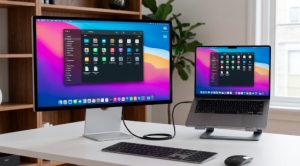
The Apple Studio Display (2026) is the Mac pick. RTINGS says it suits Mac owners, citing its 5K resolution, accurate sRGB mode and Thunderbolt 5 connection. Prices in recent ProductChart snapshots ran from $1,599 to $1,859.99.
The weak spot is power. The Studio Display tops out at 96W over Thunderbolt 5. A 14-inch MacBook Pro or any MacBook Air will be fine, but a 16-inch MacBook Pro ships with a 140W charger and will charge slower under heavy load. If that’s your machine, the numbers favor a Dell with 140W delivery.
For everyone not on a Mac, RTINGS points to the Dell U2725QE instead. It adds a bigger USB hub and the extra wattage, and it drops the Apple price premium.
Skip the Studio Display if you use Windows, or if you only need decent text for email and spreadsheets. You’d pay for color accuracy and Apple integration you won’t use. Mac users on a budget can run a Dell S2725QC off a MacBook Air without trouble.
Best ultrawide for working from home

The Dell U4025QW is a 40-inch 5K2K ultrawide, and both RTINGS and TechRadar cover it. It does the job of two 27-inch screens without a seam through the middle of your spreadsheet. Window-snapping layouts work well on it, and one cable replaces two.
I couldn’t capture a current price, so check the listing. A secondhand summary of Wirecutter’s 2025 guide named a smaller option, the 34-inch Dell U3425WE. I couldn’t open Wirecutter’s current page, so treat that one as a lead, not a confirmed pick.
The trade-offs are real. At about 37 inches wide, it needs a wide desk and enough depth to keep you from sitting too close. Two separate screens also let you drag a video call to one side and leave it there, while an ultrawide makes you manage windows inside one panel.
Choose the ultrawide if you already run two monitors and the bezel annoys you. Skip it if you share a narrow desk, or if two budget screens would cost far less than this one panel.
How big and how far: fit a monitor to your desk
Screen size means little if the desk can’t hold it at the right distance. Two safety bodies publish guidance here, and almost no roundup turns it into advice. Treat the numbers as guidelines.
Distance
OSHA gives a preferred eye-to-screen distance of 20 to 40 inches (50 to 100 cm). CCOHS says its own guidance varies by source and isn’t carved in stone. It suggests roughly arm’s length, and says to enlarge the text rather than lean in. A 27-inch screen sits comfortably in the middle of that range. A 32-inch screen wants the far half.
Height and angle
OSHA says the top of the screen should sit at or slightly below eye level. It puts the center of the screen about 15 to 20 degrees below horizontal. CCOHS adds that bifocal wearers should sit slightly lower.
Stands rarely get the height right on their own. If yours can’t reach eye level, add an arm or raise the base. An arm also frees desk depth, which helps if you picked a large screen. Check the stand on any monitor before you buy it, since adjustability varies even within one brand. CCOHS monitor positioning guidance. Best monitor arm
Ports and power: set up a one-cable laptop desk
One cable beats three, but only if the numbers match. These steps take about five minutes.
- Find your laptop charger’s wattage. It’s printed on the brick.
- Confirm the laptop’s USB-C or Thunderbolt port supports video output. Many do, but some only carry data.
- Pick a monitor that delivers at least that wattage. A 65W monitor underpowers a 100W laptop.
- Use the cable in the box. Cheap cables often cap power or video quality.
- Have two laptops? You need a KVM switch. The U3225QE has one built in.
| Your laptop | Good match | Why |
| MacBook Air or 14-inch Pro | Apple Studio Display | 96W is enough, and Mac support is strong |
| Performance Windows laptop | Dell U2725QE or U3225QE | Up to 140W over Thunderbolt 4 |
| Work laptop plus personal laptop | Dell U3225QE | Built-in KVM, per PCWorld |
| Thin laptop, tight budget | Dell S2725QC | 65W USB-C at about $252 to $330 |
Buyers on a Dell deal thread described real two-laptop desks that live or die on KVM behavior, and that need is rarely mentioned in reviews. The budget S2725QS has no USB-C at all, so it only suits a laptop you’re happy to charge separately.USB-C docking stations for laptops
Room light, glare and video calls
Light decides whether a good monitor looks good. RTINGS includes bright-room caveats in its testing and notes that the budget Dell is dimmer. That matters in a spare room with a west-facing window and doesn’t matter in a basement.
Bright room: put the screen at a right angle to the window, so daylight crosses it instead of landing on it. Direct sun behind you reflects off the panel, and sun in front of you washes out the picture. If you can’t rotate the desk, a brighter monitor helps, but blinds are cheaper.
Dim room: nearly any monitor works, including the S2725QS. Lower the brightness anyway, since a bright screen in a dark room tires your eyes.
Shared space: a larger screen on an arm lets you push it aside when the desk becomes a dining table.
For calls, put the camera at eye level and the monitor’s top edge near it. That keeps your gaze close to the lens, which makes eye contact look natural. A monitor with an eye-comfort sticker, such as TUV Rheinland certification, is a nice extra, but the certification alone isn’t evidence of anything about your eyes.
Is OLED a good work monitor?
Not for most people. OLED screens look excellent for movies and games, and T3’s short list includes a gaming and TV OLED. For eight hours of spreadsheets, though, the documented trade-offs matter.
- Burn-in exposure: Static elements such as a taskbar, toolbars and spreadsheet gridlines sit in the same place for hours.
- Brightness limiting: Many OLEDs dim themselves on large bright areas, and a white document is exactly that.
- Text fringing: Subpixel layouts can leave faint color edges on small text, which bothers some readers more than others.
Mainstream work-from-home roundups barely mention any of this. I’d concede one point to OLED fans. If you game or edit video after work, a single OLED can serve both purposes, and careful habits reduce the risk. Auto-hide the taskbar, use dark mode, set a screen timeout and rotate your wallpaper.
For a monitor that sits on one document layout all day, stick with an LCD. A 4K panel like the S2725QS or U3225QE gives you sharper text and no burn-in worry at any price.
Three desk setups and what they cost
The monitor is only part of the bill. An arm, a cable and sometimes a dock decide whether the desk is comfortable. Totals below add my own rough estimate of $50 to $150 for a decent arm, so treat them as planning numbers, not quotes.
Three sample setups
| Setup | Monitor | Add-ons | Rough total |
| Essentials | Dell S2725QS ($219 to $280) | HDMI cable, basic arm | $270 to $430 |
| Balanced | Dell S2725QC ($252 to $330) | USB-C cable in box, arm | $300 to $480 |
| Premium | Dell U3225QE ($800 to $950) | Arm, built-in dock features | $850 to $1,100 |
The premium monitor has the dock, Ethernet and KVM built in, so you skip a separate dock. Recheck prices on the day you buy.
Notes for managers writing a stipend policy
No independent guide I found offers stipend tiers, so here’s a starting structure. Pick one model per tier so support stays simple and hybrid staff get the same desk at home and in the office. Match the tier to the laptop, since a 65W monitor fails a power-hungry machine. Include an arm and a USB-C cable in the stipend, since both affect posture and setup time.
Best monitors for working from home: the decision in five steps
Run through these in order and you’ll land on the right monitor without reading another roundup.
- Choose a layout. One 27-inch 4K screen is the default. Choose two screens only if you keep a second window open all day. Choose an ultrawide only if your desk is wide and deep.
- Check your laptop’s wattage. Under 65W, a Dell S2725QC works. Up to 96W, the Studio Display works for Macs. Up to 140W, you want a Dell U2725QE or U3225QE.
- Check your room. Bright rooms need a brighter panel and a screen turned away from the window. Dim rooms forgive a budget model.
- Set your budget tier. About $220 to $330 buys a strong 4K Dell. About $800 to $950 buys the U3225QE with its hub and KVM. Add an arm.
- Fit it to your desk. Aim for 20 to 40 inches of distance and a top edge at or slightly below eye level.
Skip OLED for static office layouts, and skip anything you can’t return if it doesn’t fit.
FAQ
What size monitor is best for working from home?
A 27-inch 4K screen suits most desks. Go to 32 inches if you sit toward the back of the 20 to 40 inch range. A 40-inch ultrawide replaces two monitors but needs a wide, deep desk.
Is 4K worth it for office work?
Yes at 27 inches and above, because text looks noticeably sharper. With budget 4K models at about $219 to $280, the price gap with 1440p has narrowed. If money is tight, a 1440p monitor still works for email and documents.
Do I need a USB-C monitor?
Only if you want one cable for picture, data and charging. Check that your laptop’s USB-C port outputs video, and match the monitor’s wattage to your charger. Otherwise HDMI or DisplayPort works fine.
Is an ultrawide better than two monitors?
It depends on your desk. An ultrawide has no bezel and needs one cable. Two screens cost less, give you separate windows and fit shallower desks.
How far should my monitor be from my eyes?
OSHA’s preferred range is 20 to 40 inches. CCOHS suggests about arm’s length. Put the top of the screen at or slightly below eye level, and enlarge the text rather than moving closer.
Is OLED safe for spreadsheets and documents?
It carries more risk than an LCD, because static layouts raise burn-in exposure. OLEDs can also dim on bright white pages and show faint text fringing. Use an LCD for a fixed work layout.