
- How long should you stand at a standing desk? A simple schedule - November 3, 2026
- Best Standing Desks for Small Spaces: 2026 Buyer’s Guide - November 2, 2026
- Best Monitor Arm (2026): Top Picks by Budget and Desk - October 30, 2026
Most desks need one arm: the Ergotron LX Pro, about $195, rated for 22 lb and 34-inch screens. The rest of this guide covers the cases where it’s the wrong call.
The best monitor arm for most people is the Ergotron LX Pro. Spend under $100 on the MSI MAG MT201, step up to the Ergotron HX for screens heavier than 22 lb, and buy the Ergotron LX Dual for two monitors. Before you buy any of them, confirm three numbers: your monitor’s weight, its VESA pattern, and your desk’s thickness..
Key Takeaways
- The Ergotron LX Pro costs $195 to $209, takes up to 22 lb and 34-inch screens, and carries a 10-year warranty.
- The best monitor arm under $100 is the MSI MAG MT201, which usually sells for $60 to $80 and is rated for 44 lb.
- Amazon’s top sellers cluster at $20 to $50, yet PCWorld found the Vivo STAND-V002 sagging under a 10 lb, 27-inch screen.
- Arms have a weight floor as well as a ceiling. The Herman Miller Flo wants a screen of at least 7 lb.
- Clamps struggle on tops thinner than roughly 15 to 20 mm and on glass.
- Put the top of the screen at or just below eye level, about an arm’s length away.
Best monitor arm picks at a glance, by budget and setup
These picks draw on PCWorld’s September 2026 round-up, Tom’s Guide, Wirecutter, manufacturer spec sheets and owner reports. We haven’t run our own drift tests, so when reviewers disagree, we say so. Where a number appears, it comes from a named review or a manufacturer page. Prices are US street prices from October 2026 and shift weekly.
| Situation | Pick | Typical price | Rated load |
| Most single screens | Ergotron LX Pro | $195 to $209 | 22 lb, up to 34 inches |
| Under $100 | MSI MAG MT201 | $60 to $100 | 44 lb, up to 49 inches |
| Under $50 | Huanuo HNSS6 | $37 to $48 | 20 lb, up to 32 inches |
| Premium feel | Herman Miller Flo | $295 to $305 | 7 to 20 lb |
| Ultrawide, heavy | Ergotron HX | $320 to $345 | 42 lb, up to 49 inches |
| Two monitors | Ergotron LX Dual | $409 to $489 | up to 27 inches each |
| Cheap dual | Workstream by Monoprice | $100 to $132 | 20 lb per arm (claimed) |
| Built-in dock | Humanscale M2.1 | $356, hub extra | 5 to 15 lb |
Each pick gets its own section below. One pattern holds across the reviews we read: rated capacity is a ceiling, not a target. PCWorld doubts the Monoprice dual arm can really carry 20 lb per side, and it points out that most 27-inch monitors weigh 10 lb or less. So the number rarely matters until a 34-inch ultrawide arrives on your desk.
If you only read one column, read the rated load. It sorts arms faster than price does. Warranty length is a decent proxy for build quality too: Ergotron backs the LX Pro and HX for 10 years, Herman Miller backs the Flo for 12, and Amazon Basics and AVLT arms carry one-year warranties. The best monitor arm for you is the one whose limits match your screen.
Check your monitor’s weight and VESA pattern before you shop
Start with the monitor, not the arm. Find its weight without the stand on the spec sheet, since arm makers rate capacity for the panel alone. PCWorld says most 24 and 27-inch monitors weigh 10 lb or less. Its own test screens ran heavier: a 32-inch widescreen around 15 lb and a 38-inch ultrawide around 20 lb. No spec sheet? Weigh yourself on a bathroom scale holding the monitor, then subtract your own weight.
Check the floor as well as the ceiling. The spring in an arm is tuned to a weight window, and a screen that’s too light drifts upward. The Herman Miller Flo recommends monitors of at least 7 lb, the Humanscale M2.1 covers 5 to 15 lb, and Huanuo’s FlowLift lists 4.4 to 19.8 lb. The best monitor arm for a 24-inch screen sits in a different weight window than the one for a 38-inch ultrawide.
Then leave headroom. A common rule is to stay 15 to 20 percent under the maximum. Width matters too: PCWorld warns that a 40-inch screen on an arm sized for 32 inches can overload the tension mechanism even when the weight is legal, because a wider panel puts its mass farther from the pole.
Find your VESA pattern in a minute
Look behind the monitor, or under the stand neck, for four threaded holes in a square. Measure center to center. Nearly all monitors and arms use 75×75 mm or 100×100 mm, with 100 mm the more common, and every arm in this guide takes both. VESA mounting standard
No holes at all? The non-VESA section near the end covers adapters.
Gas spring, mechanical spring or fixed tension: which mechanism lasts
The spring decides whether an arm moves with one finger or needs an Allen key every time you change posture. Four designs show up in this price range.
| Mechanism | Example | One-hand adjusting | Known weak point |
| Constant Force spring | Ergotron LX Pro, HX | Yes | Higher price |
| Gas spring | Huanuo HNSS6, Herman Miller Jarvis | Yes | Can lose strength over time |
| Mechanical spring | MSI MAG MT201 | Partly; tension needs an Allen key | Fiddly tuning |
| Screw tension | Vivo STAND-V002 | No | Sags, needs tools for every move |
PCWorld flags the gas spring weakness directly: the cylinders can lose potency over time, and the cheap ones in the $35 to $50 range are often barely strong enough for a 27-inch screen. Ergotron’s Constant Force spring uses a different design and passes the company’s own 10,000-cycle motion test. Huanuo says its MechaSpring design lasts twice as long as gas springs, but that’s a brand claim, and we found no independent test.
Every arm PCWorld recommends needs an Allen wrench to set tension. The Flo adjusted effortlessly, while the Monoprice dual arm took serious torque.
The best monitor arm for daily use has a gas or Constant Force spring. If you set the height once and never touch it, a mechanical spring like the MT201’s is fine, and its 44 lb rating leaves room. Avoid screw-tension arms entirely. PCWorld recommends against them, and the Vivo STAND-V002 shows why.
Lift range matters as much as the spring. The LX Pro and Jarvis both give about 13 inches, while an arm with a 6.3-inch lift, like the Amazon Basics model, barely beats the stand it replaces.
Best monitor arm for most single-monitor desks: Ergotron LX Pro
The Ergotron LX Pro earns the top slot because it doesn’t ask for anything. Its two sections slip together, the desk clamp has a handle you can turn without tools, and thumbscrews hold the VESA plate to the monitor. PCWorld calls its build quality competitive with the $356 Humanscale M2.1, which costs about $160 more. It’s the best monitor arm for most single screens.
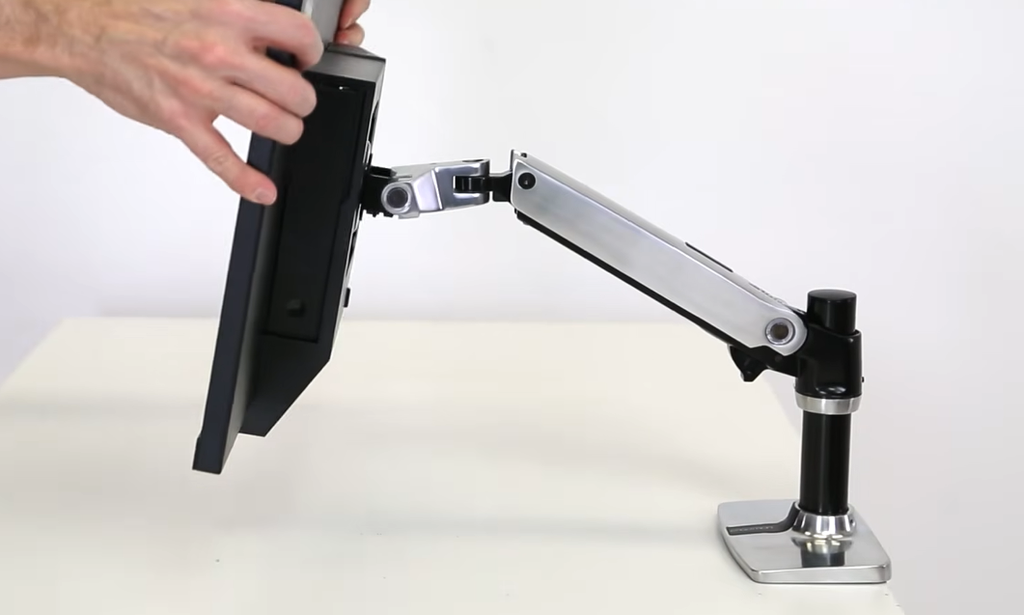
- Capacity: up to 22 lb and 34-inch screens (the older LX took 25 lb)
- Lift: 13 inches per PCWorld, with 85 degrees of tilt and 360 degrees of swivel and rotation
- Warranty: 10 years
- Price: $209 MSRP, about $195 on Amazon in September 2026
Check the Ergotron LX Pro price on Amazon
Ergotron’s sheet for the LX Pro lists a tension indicator for repeating settings across arms, a rotation stop that protects walls and partitions, an added cable cover, and optional extension, notebook tray and desk-to-wall kits.
The trade-offs are small. Its 22 lb ceiling sits below the older Ergotron LX’s 25 lb, which only matters if you own a heavy ultrawide, and then you want the HX anyway. At $195 it also costs about five times what a Huanuo does.
The alternative: Herman Miller Jarvis
Wirecutter has recommended the Jarvis, formerly sold as the Fully Jarvis, for years. It holds 13 to 32-inch screens up to 19 lb with a 13.2-inch lift, and Tom’s Guide set it up in about 20 minutes. Street prices have ranged from about $140 at the Herman Miller store to $195 elsewhere, and Amazon stock has been patchy. Reported warranty length varies from 5 to 15 years across sources, so confirm it on Herman Miller’s page before you buy. Choose the Jarvis if you find it near $140 and your monitor is 32 inches or smaller.
Best premium monitor arm: Herman Miller Flo and Humanscale M2.1
Premium arms sell on feel. The Herman Miller Flo moves with a nudge, which PCWorld found smoother than the Ergotron LX, and it comes with a 12-year warranty and 24/7 customer service. It offers 13.3 inches of lift, 80 degrees of tilt and 360 degrees of swivel, essentially the same range as the LX for about $100 more. The VESA clip mount also fits monitors with slightly recessed mounting holes, which trips up some other arms.
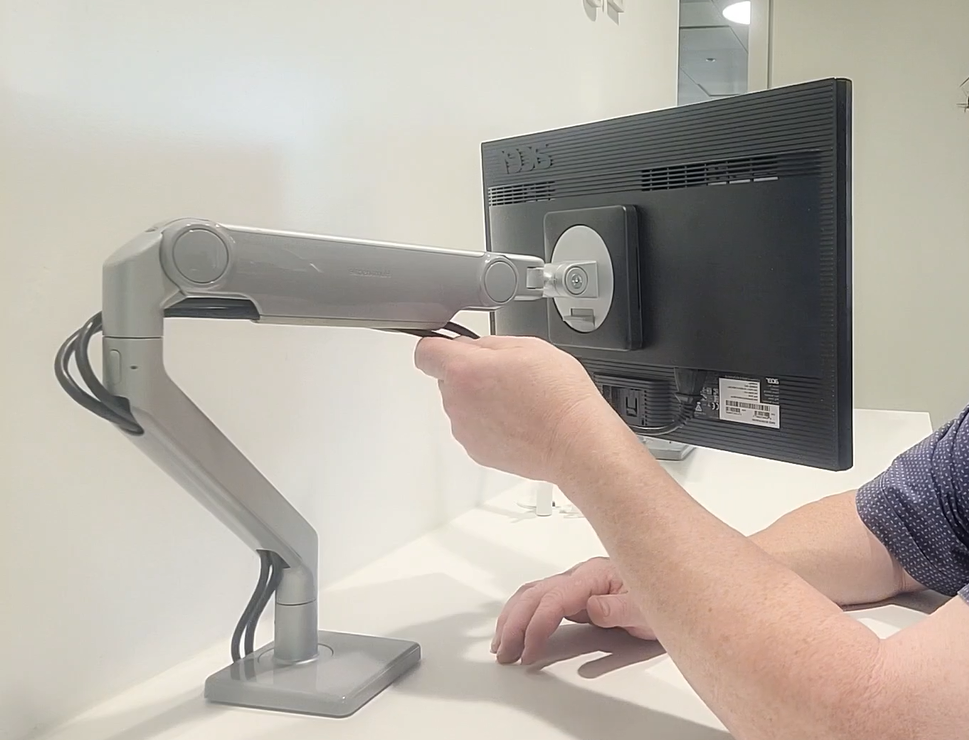
The limits are real. The Flo tops out at 20 lb and wants a screen of at least 7 lb, so weigh your monitor first. Cable management is basic, though PCWorld found its clips the least likely to bind as the arm moves.
For people who adjust the screen all day, the Flo is the best monitor arm money buys. Check the Herman Miller Flo price
Humanscale M2.1 with M/Connect
The Humanscale M2.1 ($356) is the pick if you want a dock built into the arm. It holds 5 to 15 lb, has a smart stop feature that caps how far the arm rotates, and its joints release quickly when you take the arm apart. The M/Connect 3 hub adds three USB-C and two USB-A ports for $253, and the $600 Pro Dock adds Ethernet and two DisplayPort outputs. Add it up and a basic setup runs $609. Tom’s Guide rated the plain Humanscale M2 the easiest arm to install, at around 10 minutes, though it called the range of motion limited.
For most desks, the LX Pro gives up some smoothness and a dock, and keeps $100 in your pocket.
Best budget monitor arm under $100: MSI MAG MT201 and Huanuo HNSS6
Amazon’s top sellers cluster between $20 and $50, and that’s where PCWorld found the worst arm it has tested. Spend a little more. PCWorld calls the MSI MAG MT201 the minimum viable monitor arm and says anything cheaper costs you too much in design and quality. At this price, it’s the best monitor arm to buy.
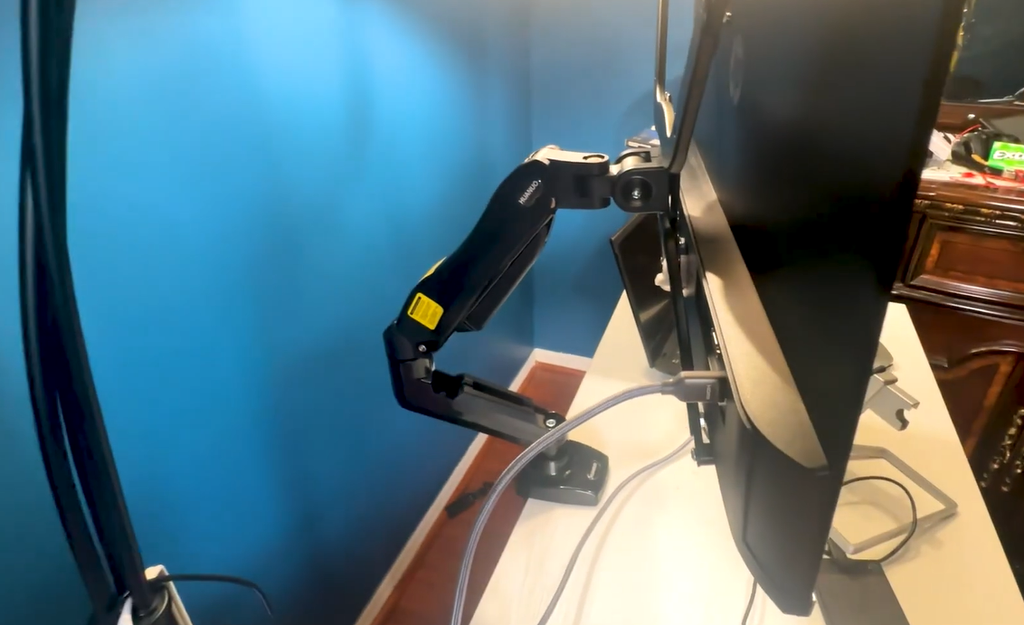
MSI MAG MT201: the $60 to $80 default
The MT201 lists at $99.99 but usually sells for $60 to $80 on Amazon, with a low of $49.99. It’s rated for 49-inch screens up to 44 lb, uses a spring system instead of gas, and includes a quick-release VESA mount. Assembly takes 15 to 20 minutes and a lot of screws, and tension changes need an Allen key. The cladding is plastic over a metal frame. It looks tidy anyway, and the arm swivels and tilts without complaint. See the MSI MAG MT201 on Amazon
Huanuo HNSS6: the under-$50 option
The HNSS6 costs $37 to $48 and uses a gas spring. Setup takes three screws, and the clamp adjusts without removing hardware. Huanuo rates it at 20 lb for 32-inch screens, and PCWorld ran it with panels up to 12 lb without trouble. The plastic cable covers are finicky and won’t hold a USB cable on top of video and power. See the Huanuo HNSS6 on Amazon
Two to avoid
The Vivo STAND-V002 (under 30)saggedundera10lb,27-inchmonitorinPCWorld’stest,eventhoughitrankedasAmazon’ssecond-bestselleratthetime.Itstinyclamphasnorubberpad.TheMountUpMU0004(32 to $40) works, but its two-piece clamp needs screws removed to resize and its finish is coarse.
Best monitor arm for ultrawide and heavy monitors
Ultrawides sag first. A 34-inch panel puts more torque on an arm than its weight suggests, because the mass sits far from the pole, and owners report arms that either droop or turn so stiff they need a tug to tilt. Buy for the heavy case. The best monitor arm for an ultrawide is the one that doesn’t droop.
Ergotron HX: the safe answer
Ergotron lists the HX for 20 to 42 lb displays up to 49 inches, though PCWorld ran a 15 lb widescreen and a 20 lb, 38-inch ultrawide on it and the arm handled both easily. Lift is 11.5 inches, with 75 degrees of tilt and 180 degrees of swivel. That’s narrower than the LX, a normal trade for arms built around heavy screens. It costs $320 to $345 and carries a 10-year warranty. The look is industrial, and some desks won’t suit it. See the Ergotron HX on Amazon
Huanuo TitanLift and MSI MT201: the cheaper route
The Huanuo TitanLift claims 40 lb, uses thick metal parts and a big base, and costs $90 to $110. PCWorld calls it a reasonable alternative when it sells about $20 below the MSI MAG MT201, which is also rated for 49-inch, 44 lb screens. The TitanLift needs two separate clamps screwed to its base, and the tilt feels loose until it clicks into place. Neither is as polished as the HX. If your ultrawide weighs 25 lb or more and your budget tops out near $100, one of them will do.
For 49 to 57-inch super ultrawides, Secretlab’s MAGNUS heavy-duty arm is listed for 34 to 57 inches at $329 to $349, though we found no independent test. Pair any of these with one of our best ultrawide monitors picks.
Best dual monitor arm: Ergotron LX Dual, Monoprice and Clearspace
Two single arms use your full desk width. One dual arm mounts at a single point and keeps the pole count down, which helps on a narrow desk. Check three limits before you pick: combined weight, per-screen size, and desk thickness.
| Arm | Price | Limit or feature | Catch |
| Ergotron LX Dual Side-by-Side | $409 to $489 | 27 inches per screen | Stacking works only if one screen is under 23 inches |
| Workstream by Monoprice Dual | $100 to $132 | 27 inches, 20 lb claimed | Hard to set up, stiff to adjust |
| Huanuo HNDS6 | about $60 | 4.4 to 14.3 lb per arm | Two clamps and about a dozen screws |
| Vari Dual-Monitor Arm | $299 | 27 inches per screen | Fits desks 2.25 inches thick or less |
| Clearspace Uni-2 | $599 to $699 | Independent sliders | SmartDock add-on costs $650 |
The LX Dual is the best monitor arm for two screens. PCWorld says it keeps the same build, smooth motion and 10-year warranty as the single LX, and it costs a little less than two LX arms. The Monoprice is the value play at a quarter to a third of the price, but PCWorld doubts it can carry two 20 lb screens. Treat it as a 27-inch, under-10-lb arm and you’ll be fine. See the Workstream by Monoprice dual arm on Amazon
Clearspace’s Uni-2 earns its $599 to $699 with independent sliders for each screen, softer styling than Humanscale or Herman Miller, and a standard hub with one USB-A and one USB-C port. Skip the 650SmartDock,whichPCWorldsayslacks4K60Hzvideoand2.5GbpsEthernet.Forlargescreens,PCWorldexpectsHumanscale’sM8.1crossbar(686) to be steadier, and the HX dual setup runs about $585.
Will your desk hold a monitor arm? Clamp, grommet and glass
Most arms ship with a clamp and a grommet mount. The clamp grips a free desk edge, so it needs open space above and below it. PCWorld says to double-check the spec if your desk is thicker than 1 inch, since some clamps won’t open that wide. A grommet mount drops through a round hole, common on office desks, and is the better choice on thick tops.
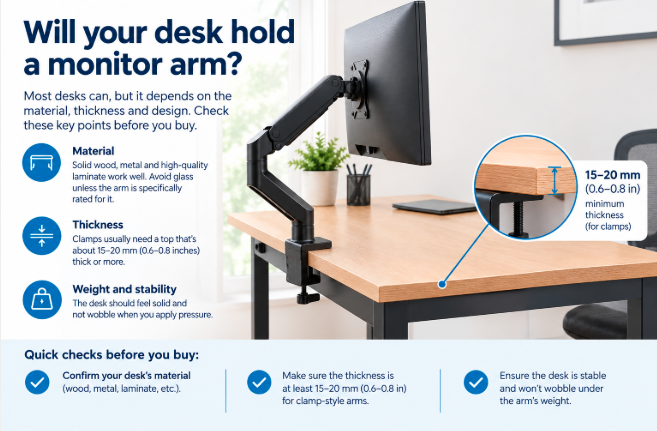
Thin tops, veneer and glass
Thin tops are the common failure. Clamps can struggle on laminate under roughly 15 to 20 mm, and a thin surface can flex until the clamp loosens. Veneer over particleboard can dent if you over-tighten. Tighten until the arm is firm, not until the desk creaks, and add a reinforcement plate under weak tops. Wide, padded clamps spread the load: the LX Pro has a wide one, while the MountUp lacks a rubber pad and the Vivo clamp is small.
Glass needs the most care. PCWorld tells buyers to check with the desk’s maker. Mounting to the desk frame, or skipping the desk and using a wall arm, avoids loading the glass. Wall arms need studs or masonry, and a 22 lb WALI wall arm sells for about $30. The best monitor arm for a glass desk may be a wall arm.
Before you buy:
- Measure the desktop thickness at the exact clamp spot.
- Check the underside for frame rails or drawers within the clamp’s reach.
- Compare both numbers to the arm’s listed clamp range.
Best monitor arm for standing desks and sit-stand setups
A desk that rises needs an arm that compensates. When you stand, your eyes move relative to the desk surface, and the arm has to lift or lower the screen by that difference. Measure it: sit and note the height of your eyes above the desktop, stand and note it again, and subtract. That gap is the lift you need.
| Arm | Lift |
| Amazon Basics single | 6.3 inches |
| Humanscale M2 | 10 inches |
| Ergotron HX | 11.5 inches |
| Ergotron LX Pro | 13 inches (PCWorld) |
| Herman Miller Jarvis | 13.2 inches |
| Herman Miller Flo | 13.3 inches |
| AVLT 13 to 43-inch | 23 inches |
Treat the LX Pro’s number with care. PCWorld lists 13 inches, but at least one other review says 18.3. Check Ergotron’s own spec sheet before you count on the taller figure. For tall users, the Ergotron LX also comes with a tall pole option, which Tom’s Guide describes and Wirecutter once recommended for people over 6 feet at sit-stand desks.
Clamp fit matters more here, since a sit-stand top is often thin. If the screen sways after each height change, reinforce the clamp point before you blame the arm.best standing desks.
Treadmill-desk users face the same problem. OCDevel notes that a tall-pole arm covers the full sit-to-walk range, while a standard articulating arm’s 5 to 13 inches of lift falls short for tall walking-pad setups.
Mac displays, non-VESA monitors and USB-C cable problems
A monitor with a smooth back can still use an arm. A VESA adapter, an X-shaped steel bracket that grips the panel’s frame, adds the 75×75 or 100×100 mm holes. Most clamp-style adapters are rated around 8 kg (17.6 lb), and the system can only carry the lower of the adapter’s and the arm’s ratings. Pick a bracket rated well above your screen’s weight, and check its clamp range against the panel’s width.
Apple Studio Display
The Studio Display uses a 100×100 mm VESA pattern, but it needs the VESA-mount version or Apple’s adapter before any arm will fit. It weighs around 14 lb without its stand, so the LX Pro, Flo and Humanscale M2.1 all cover it. Some arms partly hide the Apple logo on the back, which matters to owners who care about the finish. Forum owners report using the Humanscale M8.1, and B&H confirms the Ergotron HX works with the Pro Display XDR’s VESA adapter. The best monitor arm for a Studio Display is any one whose weight window brackets that 14 lb.
USB-C cables
PCWorld found that none of the arms it tested can hold the full cable set of a high-end USB-C monitor like the Dell U3223QE. The fix is a single Thunderbolt or USB-C cable from the computer, plus power, and a loop of slack at each joint so the arm can move through its full range without pulling. The Humanscale M/Connect hub and Clearspace’s built-in hub move some ports to the arm base, so you reach fewer cables behind the screen.best USB-C monitors.
Set up your monitor arm at the right height and distance
The Canadian Centre for Occupational Health and Safety puts the top of the screen at eye level, a little lower if you wear bifocals, and about an arm’s length from your face. OSHA-based guidance gives a viewing distance of roughly 18 to 30 inches, and large screens need the far end of that range. One government checklist adds a 10 to 20 degree tilt to cut glare. CCOHS monitor positioning guide
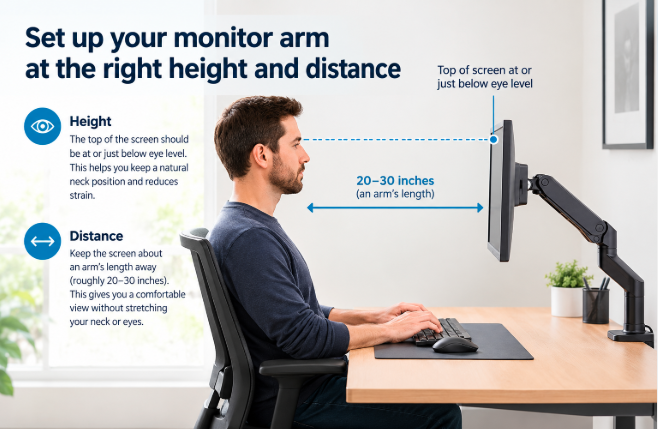
Even the best monitor arm fails if the screen sits too high.
Install it in seven steps
- Weigh the monitor without its stand and compare it to the arm’s minimum and maximum.
- Attach the VESA plate to the monitor with the supplied screws, using the 75 mm or 100 mm holes.
- Mount the base on a clear desk edge, or through a grommet hole, and tighten until firm.
- Lift the monitor onto the arm. On heavier arms, get a second person, as Wirecutter’s testers did with the Jarvis.
- Set the tension with the Allen key until the screen stays where you leave it.
- Route cables through the arm’s channels with slack at every joint.
- Raise the screen until its top edge meets your eye level, then tilt it back a few degrees.
Plan on 15 to 20 minutes for a budget arm like the MT201. Tom’s Guide set up the Jarvis in around 20 and the Humanscale M2 in about 10.
Monitor arm FAQ: what buyers ask most
Are monitor arms worth it?
Usually. Stock stands adjust 5 to 6 inches, while arms give 10 to 15, according to PCWorld, and a good arm outlasts several monitors. Skip one only if your stand already puts the top of the screen at eye level.
Do monitor arms damage desks?
They can. Over-tightened clamps dent veneer over particleboard, and small clamps without rubber pads scratch. A wide padded clamp, a reinforcement plate under thin tops, or a grommet mount all reduce the risk.
What is the best monitor arm for a 34-inch ultrawide?
The Ergotron HX, if the screen weighs 20 lb or more. It takes up to 42 lb and 49 inches for $320 to $345. Lighter panels fit the LX Pro (22 lb, 34 inches) or the MSI MT201 at $60 to $100. Leave 15 to 20 percent headroom either way.
Why is my monitor arm sagging?
Low tension or an overloaded arm causes most sag. Add tension with the Allen key in small turns. If the screen still drifts, the spring may be wearing out, and that’s when a 10-year warranty like Ergotron’s pays off.
Can I put a monitor arm on a glass desk?
Ask the desk’s manufacturer first, as PCWorld advises. Thin glass can flex under a clamp, so mounting to the desk frame or using a wall arm is safer.
Are $25 monitor arms any good?
Under $30, rarely. PCWorld still recommends the $37 to 48HuanuoHNSS6asthecheapestarmthatdoesthejob,butitfoundthesub-30 Vivo STAND-V002 sagging under 10 lb. Budget $40 to $100 for a gas or spring arm that holds its position.
Summary: how to choose your monitor arm in four decisions
Four checks decide almost every purchase, in this order.
- Weight and size. Weigh the monitor without its stand and stay 15 to 20 percent under the arm’s limit. The Ergotron LX Pro covers up to 22 lb and 34 inches. Heavier or wider screens need the Ergotron HX (42 lb, 49 inches) or, on a budget, the MSI MT201 or Huanuo TitanLift.
- Desk. Measure the top where the clamp will sit. Under roughly 15 to 20 mm, or glass, mount to the frame or go to the wall. Over 1 inch, confirm the clamp range or use a grommet mount.
- Movement. Daily adjusters want a gas or Constant Force arm. Sit-stand users need lift equal to the eye-height gap they measured, and about 13 inches is typical. Set-and-forget setups can live with the MT201’s mechanical spring.
- Budget. Under $50, buy the Huanuo HNSS6. From $60 to $100, the MSI MT201. Around $195, the LX Pro, or the Jarvis if you find it near $140 for a screen up to 32 inches. Pay $295 or more only for the Flo’s smoothness or the Humanscale M2.1’s dock. For two screens, the LX Dual is the safe pick and the Monoprice is the cheap one.
The best monitor arm is the one whose weight window brackets your screen and whose clamp fits your desk. Finish by setting the top of the screen at eye level, an arm’s length away, and leave slack in every cable. Prices and stock move weekly, so confirm both on the day you order.